

The Windows cannot access the specified device error usually points to permissions, a blocked file, or an unavailable location. It can also appear when security software prevents an application from running. Start with the simple checks below before changing advanced Windows settings.
Quick answer: Check that the file still exists, then open Properties and look for an Unblock option. Next, verify your account permissions and check Windows Security for blocked or quarantined files. If several unrelated applications fail, repair Windows system files instead of changing each file separately.
Quick Fixes at a Glance
| Fix | Best When | Difficulty |
|---|---|---|
| Check the file location | Shortcut or external-drive file fails | Easy |
| Unblock the file | Downloaded file will not open | Easy |
| Check permissions | Access or permission warning appears | Easy |
| Run as administrator | An application needs elevated rights | Easy |
| Check Windows Security | Windows blocks an app or installer | Moderate |
| Repair the shortcut | Desktop or Start shortcut fails | Easy |
| Move the file locally | Network or removable-drive file fails | Easy |
| Run SFC and DISM | Several apps or Windows components fail | Moderate |
| Test another user account | Problem appears tied to one profile | Moderate |
The important clue is what fails and where it is stored. One failing downloaded installer suggests a different problem from several broken Windows applications. Identifying that pattern can save you from making unnecessary security or permission changes.
Why Windows Cannot Access the Specified Device
Windows displays this error when it cannot safely open the requested file, program, path, or device. Microsoft support discussions identify permissions, inaccessible locations, moved files, and security blocking among common causes. A damaged shortcut or corrupted application can produce similar symptoms.
The message does not always mean your Windows account lacks administrator rights. An administrator can still encounter restrictions applied to an individual file or folder. Windows Security or third-party antivirus software can also prevent an executable from opening.
Work through the fixes in order rather than changing several settings together. Test the affected file after each fix. That approach makes it easier to identify the real cause.
1. Check Whether the File or Program Still Exists
Start by finding the original file, not its shortcut. Right-click the shortcut and select Properties, then examine the Target field. Make sure the listed file and folder still exist.
This check matters after moving programs, renaming folders, or disconnecting storage devices. Windows may keep an old shortcut even though its target has changed. Microsoft troubleshooting guidance lists moved, deleted, or inaccessible locations as possible causes.
If the file is on a USB drive, reconnect it before trying again. For network storage, confirm that the computer can reach the share. Copying a trusted file to a local folder can also help isolate a location problem.
2. Unblock a Downloaded File
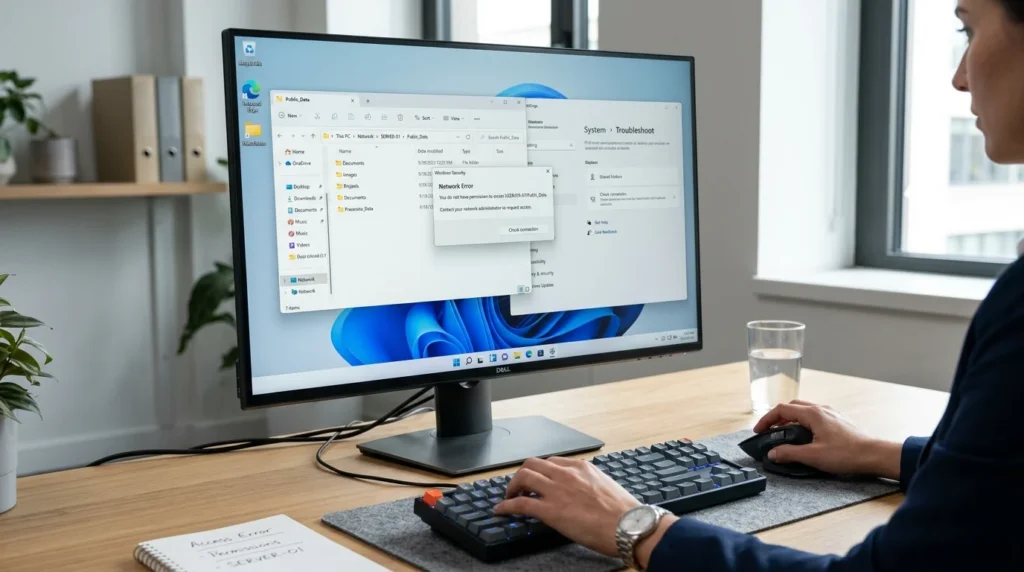
Windows can mark files downloaded from another computer or the internet as potentially unsafe. Right-click the affected file and choose Properties. Look near the bottom of the General tab for an Unblock checkbox or button.
Select Unblock when it appears, then choose Apply and OK. Try opening the file again afterward. Microsoft community guidance has documented this approach for downloaded files that produce this access error.
Not every file displays an Unblock option. Its absence does not indicate another problem by itself. Continue to the permission checks if Windows still refuses access.
3. Check the File or Folder Permissions
Right-click the affected item and select Properties > Security. Select your Windows account and review the permissions shown below it. Your account needs the permissions required to read or execute that particular item.
Choose Edit if you legitimately own the file, but the required permissions are missing. Apply only the permissions your account needs. Avoid giving broad Full Control access to every user on the computer as a general troubleshooting shortcut.
Permissions matter most after copying data from another PC or restoring an older drive. Files can retain ownership and access settings from their previous environment. Microsoft support discussions specifically recommend checking file and folder permissions for this error.
4. Try Running the Application as Administrator
Some desktop applications need elevated privileges for specific operations. Right-click the program and select Run as administrator. Approve the User Account Control prompt if Windows displays one.
This test is most useful when an application starts from one account but not another. It can also help when older software expects access to protected system locations. It should not become your permanent solution unless the software genuinely requires administrator privileges.
If running as administrator changes nothing, move to the next fix. The underlying problem may concern the file itself rather than account elevation. Administrator status alone does not override every Windows security control.
5. Check Windows Security for a Blocked File
Open Windows Security from the Start menu and review recent security activity. Check Virus & threat protection and Protection history for an entry involving the affected file. Windows may have blocked or quarantined an application it considers unsafe.
Do not restore an unknown program simply because you want it to run. Confirm that you obtained the software from its legitimate publisher first. A security warning deserves extra attention when the problem began immediately after downloading an executable.
Third-party security programs can cause similar access problems. Microsoft guidance has also identified antivirus blocking as a possible cause of this message.
6. Repair or Recreate a Broken Shortcut
A shortcut can continue pointing to an old location after an application moves or updates. Right-click the shortcut, choose Properties, and inspect its Target value. Compare that location with the program’s current executable file.
Delete the shortcut if its target no longer exists. Find the correct executable, right-click it, and create a new shortcut. Then test the newly created shortcut before making other Windows changes.
This problem is common with shortcuts to external or network locations. A disconnected drive can make an otherwise valid shortcut unusable. Checking the target first prevents unnecessary permission changes.
7. Move a Trusted File to a Local Folder
Copy the affected trusted file to a local folder such as Documents. Try opening that local copy instead of the version stored on removable or network storage. If it works locally, investigate the original drive or network location.
This test helps separate a file problem from a storage-access problem. Microsoft support cases show that external storage and inaccessible locations can cause this error.
Do not use this workaround for software that depends on other files in its installation directory. Moving one executable may break those dependencies. Use the test mainly for documents, portable utilities, or standalone files you trust.
8. Repair Windows System Files With SFC and DISM
System-file repair makes more sense when many unrelated applications fail. Search for Terminal, right-click it, and choose Run as administrator. Then use Microsoft’s built-in servicing commands to check Windows components.
Run these commands separately:
DISM /Online /Cleanup-Image /RestoreHealth
sfc /scannow
Allow each command to finish before closing Terminal. Restart the computer when both checks have completed. Microsoft community guidance recommends SFC and DISM when corrupted Windows components may be involved.
This step should come later in the troubleshooting process. A single broken desktop shortcut rarely calls for system-file repairs. Use it when the scope of the problem suggests Windows itself may be damaged.
9. Test With Another Windows User Account
Create or use another local Windows account and test the same application there. If the file works under the second account, the original profile may contain damaged permissions or configuration. That result narrows the problem considerably.
A separate account is especially useful when many programs fail for only one user. Software support guidance also uses a new local administrator profile as a diagnostic step for this access error.
Don’t delete your original profile immediately after a successful test. Back up personal files before making profile changes. You can then repair or migrate the affected account with less risk.
What to Do If the Error Affects Only One Program
Reinstall the application from its official source when only that program fails. First, uninstall the existing copy, then restart Windows before reinstalling it. This can replace damaged executables, shortcuts, and program-specific permissions.
Check whether the application recently updated before the error appeared. A failed update can leave an executable missing or damaged. Installing a fresh current copy is usually safer than manually replacing program files.
Also confirm that your Windows version supports the application. Older programs can depend on components or security behavior that newer Windows releases changed. The software publisher’s support documentation should identify any known compatibility requirements.
What to Do If Many Programs Show the Error
Several unrelated failures suggest a wider Windows or user-profile problem. Start with Windows Update, then run DISM and SFC as described above. Test a second Windows account if repairs do not change the behavior. If programs also crash or freeze, check your CPU temperature on Windows to rule out overheating.
Avoid changing permissions across the entire C: drive. Broad permission changes can weaken security and create new access problems. Troubleshoot the affected file, folder, application, or profile as narrowly as possible.
If the problem began directly after a Windows update, review the update history. Search for known issues affecting your Windows version before removing updates. A repair installation can be considered later if system-wide failures remain.
How to Prevent the Error From Returning
Keep programs in their intended installation locations whenever possible. Avoid moving application folders manually because their shortcuts and dependencies may still point to the original path. Eject removable storage correctly to reduce file-system problems.
Download installers from official publishers and keep Windows Security enabled. Security controls can occasionally block legitimate software, but permanently disabling protection creates a bigger problem. Review individual detections instead of switching off protection across the computer.
Back up important files before changing ownership or advanced permissions. Permission mistakes can affect other accounts and applications. A current backup gives you a safer recovery path if a troubleshooting change causes unexpected results.
FAQ
Why does “Windows cannot access the specified device” appear even when I am an administrator?
Administrator accounts do not automatically have unrestricted access to every file. File ownership, NTFS permissions, security software, and inaccessible locations can still block an item. Check the affected file’s properties instead of assuming administrator status should bypass the restriction.
How do I know whether Windows blocked my downloaded file?
Right-click the downloaded file and select Properties. An Unblock option may appear on the General tab when Windows has marked the file as originating elsewhere. Only unblock a file after confirming that its source is trustworthy.
Can Windows Security cause this error?
Security software can prevent applications or files from opening when it identifies a potential threat. Microsoft support guidance includes antivirus blocking among possible causes. Check Protection history before changing security settings.
Why does the file work after I copy it to another drive?
That result often points toward permissions or accessibility at the original location. External drives and network locations can introduce different access conditions. Compare the original folder’s permissions and connection status before moving all your files.
Should I give Everyone Full Control to fix the problem?
Avoid broad Full Control permissions as a first response. They may expose files to other users or weaken existing security boundaries. Give your account only the access needed for the affected trusted item.
Fix the Cause, Not Only the Error Message
Start with the file location, Unblock setting, and permissions because they are quick to verify. Check security history next, then repair shortcuts or test another storage location. Save SFC, DISM, and profile troubleshooting for broader problems.
A methodical approach is safer than disabling security or changing permissions everywhere. Test after every change so you know what fixed the problem. That makes future Windows access errors much easier to diagnose.


