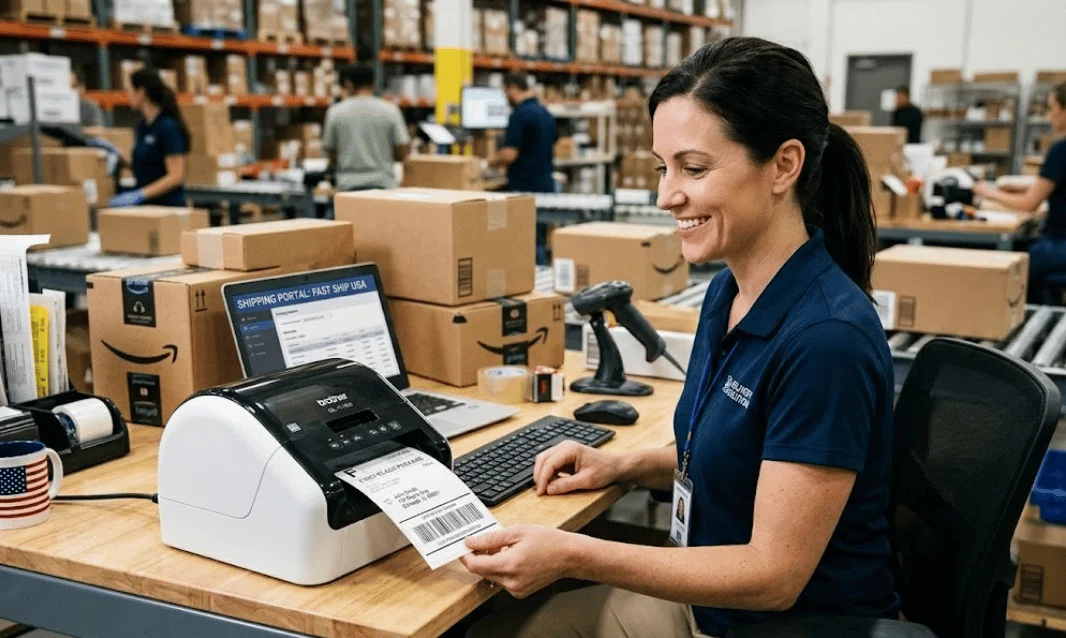
A shipping label printer can remove several small delays from a busy packing process. Dedicated models print adhesive labels without cutting letter-size sheets or using clear tape. For most U.S. sellers, a direct thermal model offers the simplest starting point.
For most U.S. sellers, the strongest default is a 4-inch direct thermal shipping label printer that handles 4×6 carrier labels. It avoids ink and toner while supporting common shipping workflows. Choose connectivity for your devices, then confirm operating-system, software, and label-stock compatibility before buying.
Quick Facts Before You Buy
| Buying factor | Practical choice for most U.S. sellers | Why it matters |
|---|---|---|
| Printing method | Direct thermal | No ink, toner, or ribbon is required |
| Label width | At least 4 inches | Supports common 4×6 shipping labels |
| Typical resolution | 203 dpi | Suitable for most normal barcode applications |
| Higher resolution | 300 dpi | Useful for smaller text or denser label designs |
| Connection | USB, Wi-Fi, Ethernet, or Bluetooth | Must match your computer and mobile workflow |
| Label supply | Check size and media restrictions | Proprietary supplies can affect ongoing costs |
| Software support | Verify before purchase | Drivers and shipping platforms vary by model |
Key Takeaways
- Choose direct thermal printing for routine parcel labels unless you need long-lasting industrial labels.
- Confirm 4×6 support because UPS and FedEx both support that common thermal format.
- A 203-dpi printer handles most standard shipping work, while 300 dpi offers finer detail.
- Check your exact computer, phone, marketplace, and shipping software before ordering.
- Compare label costs and restrictions alongside the printer’s purchase price.
What Does a Dedicated Shipping Printer Do?
A dedicated unit prints addresses, tracking details, and machine-readable barcodes onto adhesive label stock. It usually sits beside a packing station and prints labels as orders are processed. That setup removes the cutting and taping required with ordinary paper.
UPS currently supports most thermal devices that print 4×6 labels through its online shipping tools. It also supports standard desktop laser and inkjet printers. That means dedicated thermal hardware is useful, but it is not mandatory.
FedEx also supports several thermal label sizes through its shipping systems. Its documentation includes 4×6 stock without a document tab among supported formats. Larger thermal sizes are available for specialized shipment needs.
Why Direct Thermal Printing Fits Shipping So Well
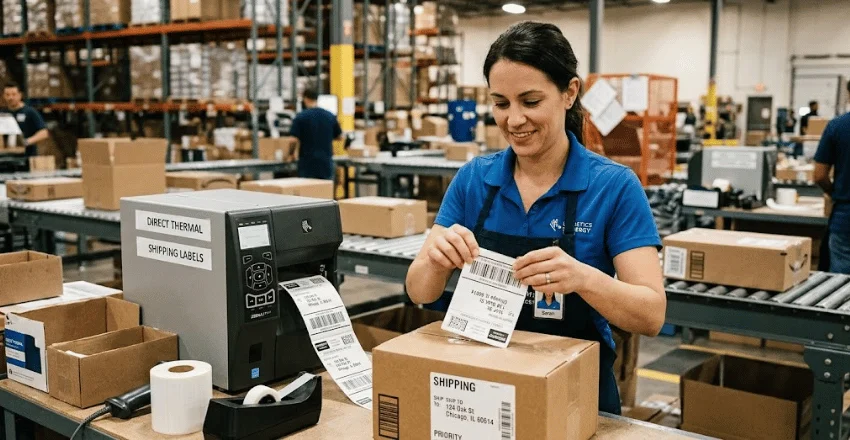
Direct thermal technology creates an image by heating specially treated media. It needs no ink, toner, or ribbon during normal printing. Zebra identifies shipping labels as a common short-term application for this method.
The tradeoff is label longevity under harsh conditions. Direct thermal media can react to prolonged heat, light, and abrasion. That limitation matters more for permanent inventory identification than normal parcel delivery.
Thermal transfer printing uses a heated ribbon instead. It produces longer-lasting images across a wider range of materials. That makes it more suitable for outdoor, industrial, asset, or long-term inventory labels.
Printer Types Compared for Shipping Labels
| Printer type | Consumables | Main advantage | Main drawback | Best fit |
|---|---|---|---|---|
| Direct thermal | Thermal labels | Simple operation and no ink | Labels dislike prolonged heat and light | Most parcel shipping |
| Thermal transfer | Labels plus ribbon | More durable printed image | Extra supplies and setup | Warehouses and long-term labels |
| Laser | Toner and label sheets | Uses familiar office hardware | Less convenient for one-at-a-time labels | Low shipping volume |
| Inkjet | Ink and label sheets | Works with existing home printers | Ink and sheet handling add steps | Occasional shipments |
For most home businesses and smaller e-commerce operations, direct thermal is the practical choice. Thermal transfer becomes more useful when labels must survive demanding environments. Existing laser or inkjet equipment remains reasonable for occasional shipments.
That recommendation reflects the job, not a specific brand. A business sending ordinary UPS, FedEx, or marketplace parcels rarely needs industrial durability. A warehouse using permanent product identification may have different requirements.
How to Choose a Shipping Label Printer for U.S. Orders
The right device should fit your current workflow before offering extra features. A cheap model can become frustrating if it doesn’t support drivers, label sizes, or mobile devices. Use these seven checks before comparing discounts.
- Confirm 4×6 printing first. UPS supports most thermal models that print 4×6 labels. FedEx also supports a 4×6 thermal format.
- Choose the printing method for the label’s lifespan. Direct thermal suits short-term shipping labels. Choose thermal transfer when printed information needs to last longer.
- Match resolution to your actual labels. Zebra says 203 dpi is adequate for most normal applications. Higher resolutions help when small spaces contain detailed text or barcodes.
- Check every connection you expect to use. USB may suit one shipping computer. Wi-Fi, Ethernet, or Bluetooth can matter across shared workstations and mobile devices.
- Verify software and operating-system support. Check Windows, macOS, iOS, Android, Chromebook, or Linux requirements before ordering. Also confirm compatibility with your shipping or marketplace software.
- Research the label supply system. Check supported widths, roll sizes, fanfold labels, and any media restrictions. Consumable flexibility can matter more than a small difference in printer price.
- Buy for realistic volume and support needs. A home seller and a warehouse do not need the same hardware. Compare warranty coverage, replacement parts, print speed, and network management for your workload.
Is 203 DPI Enough for Shipping Labels?
For ordinary parcel labels, 203 dpi is a sensible baseline. Zebra describes that resolution as adequate for most normal printing applications. The company also offers 300-dpi and 600-dpi options for finer work.
Higher resolution becomes useful when information must fit into limited label space. It can improve small text, detailed graphics, and compact barcode designs. Standard 4×6 carrier labels usually don’t require the highest available resolution.
Resolution also should not distract from print width and compatibility. A sharp printer that cannot handle your preferred label format creates a bigger problem. Start with workflow requirements, then compare resolution among suitable models.
A Five-Minute Compatibility Check Before Buying
Many buying guides compare speed and price but give little attention to workflow compatibility. A short pre-purchase test can prevent driver problems and unwanted workarounds. Check the following details against the manufacturer’s current support pages.
| Question | What to verify |
|---|---|
| What creates your labels? | UPS, FedEx, USPS software, marketplace, or shipping platform |
| What prints them? | Windows PC, Mac, phone, tablet, or shared workstation |
| How does the printer connect? | USB, Wi-Fi, Ethernet, or Bluetooth |
| Which stock will you use? | 4×6 rolls, fanfold labels, or another supported format |
| Does the model need special media? | Check brand and media restrictions |
| Will several workers print? | Consider network support and user switching |
| Where will labels be used? | Normal parcels or harsh long-term environments |
Print one real label before committing to a large supply order when possible. Make sure the layout prints at the correct scale. Then scan the barcode using your team’s normal workflow.
Think Beyond the Printer at Higher Shipping Volumes
Label printing is only one part of fulfillment. Order data, packing, weighing, labeling, and handoff should form one clear process. Techanta’s coverage of business operations and intelligent automation explains the broader value of connecting repeated operational tasks.
Larger facilities may eventually connect printing with conveyors, scanners, or automated packaging equipment. Techanta’s guide to integrating robotic packaging systems discusses why surrounding systems must work together. A faster printer alone cannot repair a poorly designed packing process.
Smaller businesses can apply the same principle on a simpler scale. Choose hardware that fits existing computers, software, and workstations. Techanta’s hardware coverage can also help when comparing related business devices.
Common Buying Mistakes to Avoid
| Mistake | Better approach |
|---|---|
| Buying only by advertised speed | Check compatibility and daily workflow first |
| Assuming every model prints 4×6 | Verify maximum print width and supported stock |
| Ignoring label restrictions | Check whether generic media is supported |
| Paying for industrial durability unnecessarily | Match printer type to label lifespan |
| Choosing Wi-Fi without checking software | Confirm device and operating-system support |
| Buying before testing label scaling | Print a real carrier label at actual size |
A specification sheet should answer practical questions, not create new ones. Look for clear details about media width, resolution, connections, operating systems, and warranty coverage. Missing compatibility information should make you investigate before purchasing.
Avoid treating print speed as the only productivity measure. Loading labels, reconnecting devices, or correcting scaling errors can erase a small speed advantage. Reliable daily operation usually matters more than a headline performance number.
Frequently Asked Questions
Can You Use a Regular Printer for Shipping Labels?
Yes, you can use an ordinary laser or inkjet printer for many shipping labels. UPS explicitly supports standard desktop laser and inkjet printers, along with thermal options. Dedicated thermal equipment mainly improves convenience for frequent shipping.
Do Thermal Printers Need Ink?
Direct thermal printers do not require ink, toner, or a ribbon. They create the image by heating chemically treated label media. Thermal transfer models use a ribbon instead of traditional printer cartridges.
What Size Printer Is Used for Most Shipping Labels?
A four-inch-wide thermal device is a practical choice for common U.S. parcel labels. UPS supports most thermal printers that can print 4×6 stock. FedEx also lists 4×6 as a supported thermal format.
Is 203 DPI Good Enough for Shipping Labels?
Yes, 203 dpi is adequate for most normal applications according to Zebra’s guidance. Higher resolution becomes valuable for smaller text and dense graphics. Your required print width and software support still deserve equal attention.
Do I Need a Shipping Label Printer for a Small Business?
Not every small business needs one immediately. An office printer can remain practical when parcel volume is low. Dedicated thermal hardware becomes more attractive as cutting, taping, and supply management consume more working time.
The Bottom Line
Most U.S. e-commerce sellers should start their search with a 4-inch direct thermal model. Look for 4×6 support, suitable device connectivity, and confirmed software compatibility. A 203-dpi model is enough for many ordinary carrier-label workflows.
Do not choose based on price or speed alone. Verify label supplies, operating systems, warranty terms, and the applications your team already uses. That short compatibility check can prevent more frustration than another small increase in print speed.