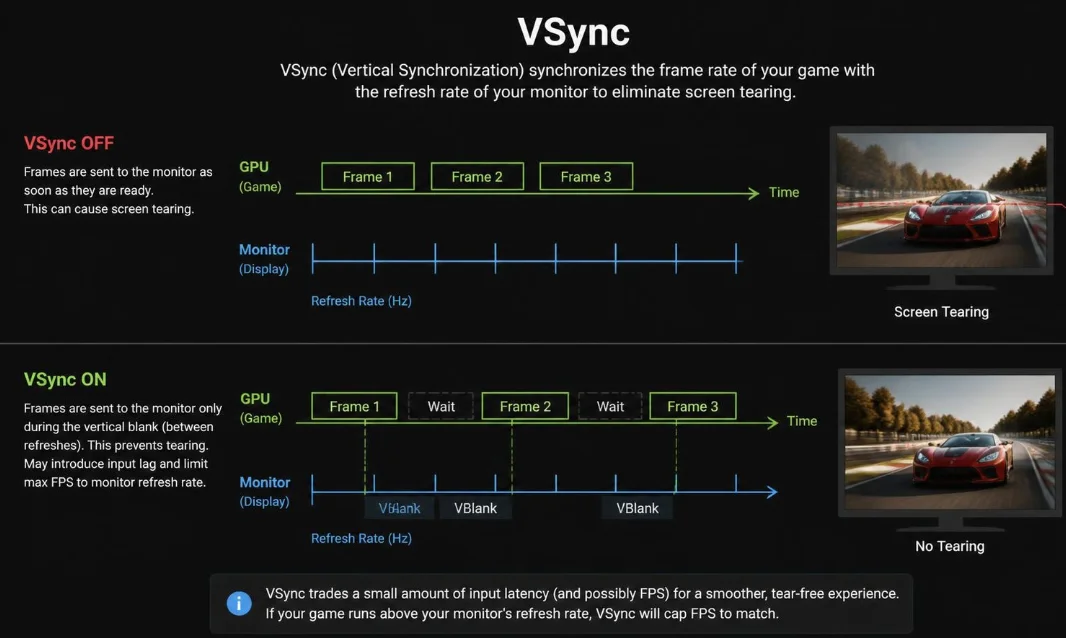
VSync is a graphics setting that synchronizes game frames with your monitor’s refresh cycle. Its main purpose is to prevent screen tearing when your GPU and display run out of sync. The trade-off is possible input lag or stuttering in certain situations.
Quick answer: VSync can make games look cleaner by preventing screen tearing. Turn it on when tearing bothers you and responsiveness isn’t your top priority. Turn it off when you need the lowest possible latency, especially in competitive games, or use variable refresh rate technology when your monitor supports it.
| Quick fact | What it means |
| Full name | Vertical Synchronization |
| Main purpose | Prevent screen tearing |
| What it synchronizes | GPU frame presentation and monitor refresh timing |
| Common benefit | Cleaner, tear-free images |
| Main drawback | Can increase input latency |
| Good use case | Story-driven and casual games with visible tearing |
| Less suitable for | Competitive games where latency matters |
| Modern alternatives | G-SYNC, FreeSync, Adaptive-Sync, Enhanced Sync |
| Typical location | Game graphics settings or GPU software |
What Does It Do?
Short for vertical synchronization, it controls when completed frames reach your display. A monitor refreshes its image a fixed number of times each second unless it supports variable refresh rates. A 60Hz display, for example, refreshes up to 60 times each second.
Your graphics card can produce frames at a different pace from your monitor. If a new frame arrives while the display is drawing another one, parts of different frames can appear together. This visual artifact is known as screen tearing.
Vertical synchronization addresses that mismatch by coordinating frame presentation with the display’s refresh timing. Intel describes the feature as synchronizing an application’s image frame rate with the monitor refresh rate. This coordination can produce complete, aligned frames instead of visible horizontal tears.
How Does It Stop Screen Tearing?
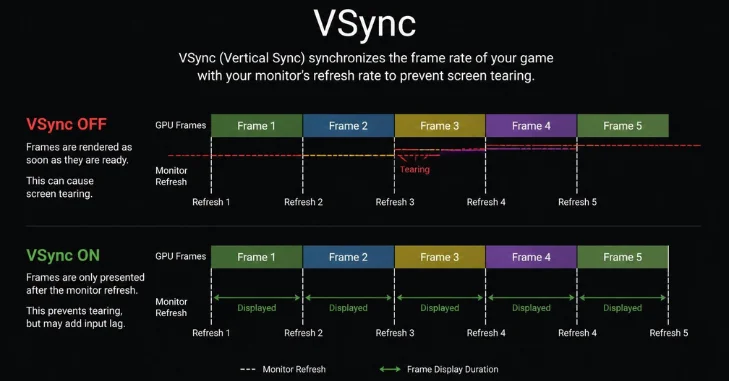
Imagine playing a game at 100 frames per second with VSync enabled on a 60Hz fixed-refresh monitor. The graphics card can finish new images faster than the screen completes its refresh cycles. The monitor can therefore begin receiving another frame before it finishes displaying the previous one.
The result can look like a horizontal split across the image. Fast camera movement often makes this problem easier to notice. Enabling synchronization makes completed frames wait for an appropriate refresh opportunity.
That waiting is why the feature can eliminate tearing, but it also creates another trade-off. A completed frame may not appear immediately after the GPU finishes it. Your mouse, keyboard, or controller input can therefore feel slightly less responsive.
Should You Turn VSync On or Off?
There isn’t one correct setting for every PC, monitor, and game. Your best choice depends on screen tearing, frame rate, refresh rate, and your tolerance for latency. The type of game you play matters too.
| Gaming situation | Suggested starting point | Why |
| Story-driven single-player game | On if tearing appears | Image consistency often matters more |
| Competitive shooter | Off | Reduces synchronization-related latency |
| Racing or action game | Test both | Responsiveness and image quality both matter |
| Fixed 60Hz display with high FPS | On if tearing is distracting | Helps prevent visible tearing |
| G-SYNC or FreeSync display | Use VRR first | Display timing can follow changing frame rates |
| Unstable FPS below refresh rate | Test with it off | Traditional synchronization may make stutter more noticeable |
For slower games, a clean picture may be worth the latency trade-off. RPGs, strategy games, and many single-player adventures usually don’t demand split-second mouse response. Visible tearing can be more distracting than a small response-time difference.
Competitive games change that calculation. Players in shooters, fighting games, and other reaction-heavy titles often prioritize immediate input response. Disabling traditional synchronization can make sense when latency matters more than occasional tearing.
Does It Lower FPS?
The feature doesn’t increase your GPU’s rendering power. Instead, it controls when the GPU presents completed frames to match display timing. This distinction explains why an FPS counter can behave differently after you enable the setting.
On a fixed 60Hz display, synchronization may keep presentation around the display’s 60Hz ceiling. A 144Hz monitor provides more refresh opportunities each second. The practical ceiling therefore depends on your monitor, not a single universal FPS number.
Performance can also feel less smooth when the GPU cannot maintain the required timing. Traditional synchronization methods may introduce noticeable stuttering when frames miss refresh opportunities. NVIDIA’s Adaptive VSync feature was designed around this problem by enabling synchronization at higher frame rates and disabling it when frame rates fall.
Does It Cause Input Lag?
Traditional synchronization can increase input latency because a finished frame may wait before being displayed. The exact effect isn’t identical across every computer or game. Refresh rate, buffering, game-engine behavior, GPU load, and frame queues can influence the result.
This delay matters most when fast reactions affect gameplay. A competitive player may notice responsiveness changes that barely register during a slower adventure game. Higher-refresh displays also provide shorter refresh intervals than 60Hz screens.
You should therefore test responsiveness instead of assuming the setting is automatically good or bad. Play the same demanding section with the feature enabled and disabled. Keep the setting that gives you the better balance between tearing and control response.
Traditional Sync vs. G-SYNC and FreeSync
Traditional synchronization changes how frames are presented around a display’s refresh schedule. Variable refresh rate technology takes another approach. A compatible display can adjust its refresh timing to follow changing frame output within its supported range.
G-SYNC and FreeSync are common technologies associated with this approach. They can reduce tearing without relying entirely on the behavior of traditional fixed-refresh synchronization. Compatibility still depends on your graphics hardware, display, connection, and settings.
AMD also offers Enhanced Sync as another option for supported Radeon systems. AMD says Enhanced Sync aims to reduce tearing while lowering the latency and stutter associated with traditional synchronization. The company also supports using Enhanced Sync alongside compatible FreeSync configurations.
These technologies shouldn’t be treated as interchangeable labels. Traditional synchronization controls frame presentation around refresh timing, while VRR lets a compatible monitor vary its timing. Understanding that difference makes graphics settings much easier to configure.
What About 60Hz, 144Hz, and Higher-Refresh Monitors?
Refresh rate tells you how frequently a display can update its image. A 60Hz monitor refreshes every 16.7 milliseconds, while 144Hz provides a refresh about every 6.9 milliseconds. Higher refresh rates can therefore make motion and interaction feel more immediate.
That doesn’t mean a high-refresh monitor automatically eliminates tearing. Your GPU and display still need an appropriate synchronization strategy. A 144Hz panel can tear when frames arrive outside its refresh timing.
Resolution also changes the performance equation because higher resolutions require more GPU work. Techanta’s guide to 4K resolution and gaming explains why you must consider resolution and frame rate together. A demanding 4K game may behave differently from the same title at 1080p.
When It Makes the Most Sense
Traditional synchronization remains useful for fixed-refresh displays that show obvious tearing. It can also work well when your system consistently produces enough frames for the monitor. Slower games make its latency trade-off easier to accept.
Consider enabling it when:
- Screen tearing is clearly visible.
- You play mostly single-player or casual games.
- Your frame rate stays relatively stable.
- Your monitor lacks variable refresh rate support.
- Visual consistency matters more than minimum input latency.
These conditions aren’t strict requirements. They provide a sensible starting point for testing your setup. Your own display and games should determine the final setting.
When You Should Consider Turning It Off
The strongest reason to disable traditional synchronization is latency-sensitive gameplay. Competitive shooters and fighting games can reward faster input response. Players may accept some tearing to avoid additional waiting between input and display output.
Consider disabling it when:
- You play competitive esports titles.
- Controls feel delayed after enabling synchronization.
- Your frame rate frequently falls below the monitor’s refresh rate.
- You experience noticeable stuttering.
- Another synchronization technology handles tearing better.
Don’t disable the feature simply because another player recommends doing so. Different monitors and performance levels produce different results. Compare both settings using the same game and scene.
How to Enable or Disable It
The easiest place to change the setting is usually inside your game. Open its video, graphics, or display menu and look for “VSync,” “Vertical Sync,” or “Vertical Synchronization.” Apply the change and test gameplay before changing several other graphics options.
GPU software can also provide synchronization controls. Intel’s Graphics Command Center supports options including Always On, Always Off, and Application Controlled on supported systems. AMD Software provides vertical-refresh and Enhanced Sync settings for compatible Radeon hardware.
Using per-game settings is often easier than forcing one global configuration. A slow single-player title may benefit from different settings than a competitive shooter. Testing games individually also helps you identify whether synchronization causes a specific problem.
A Simple Decision Checklist
Start by checking whether you can see screen tearing during normal gameplay. If you can’t see tearing and your game already feels responsive, changing synchronization may provide little practical benefit. Avoid changing graphics settings simply because they exist.
If tearing is visible, enable synchronization and replay the same scene. Check whether the image becomes cleaner and whether controls still feel responsive. Keep the setting if the visual improvement outweighs any latency or stutter you notice.
If your monitor supports G-SYNC, FreeSync, or another Adaptive-Sync implementation, investigate that feature first. VRR can adapt display timing as frame rates change within its supported range. You can then test frame caps and other synchronization settings for your particular hardware.
The Bottom Line
VSync is designed to solve screen tearing by coordinating frame presentation with your monitor’s refresh timing. It can create a cleaner image, but traditional implementations may also introduce input latency or stuttering. Those trade-offs explain why the setting isn’t universally better when enabled.
For fixed-refresh displays, turn it on when tearing is distracting, and responsiveness remains comfortable. Consider turning it off for competitive play or when it causes noticeable stutter. If your display supports variable refresh rates, G-SYNC, FreeSync, or Adaptive-Sync may provide a more flexible approach.
The best graphics setting is the one that solves a problem you can see or feel. Test one change at a time and use a repeatable gameplay scene. That approach gives you a more useful answer than copying another player’s configuration.
Frequently Asked Questions
What is VSync in gaming?
It is a graphics feature that coordinates frame presentation with a monitor’s refresh timing. It primarily exists to prevent screen tearing when the GPU and display operate at different rates. The setting can improve visual consistency but may affect latency.
Should it be on or off?
Turn it on when screen tearing bothers you and a small latency trade-off is acceptable. Turn it off when minimum input latency matters or the setting creates noticeable stuttering. Owners of compatible VRR monitors should also consider G-SYNC, FreeSync, or Adaptive-Sync.
Does it increase FPS?
No, the feature doesn’t make your graphics processor render games faster. It can instead limit or coordinate frame presentation according to display timing. If you want higher performance, lower demanding graphics settings or resolution instead.
Is it good for a 60Hz monitor?
It can be useful on a fixed 60Hz display when your GPU produces more frames than the monitor can present cleanly. Enabling it can remove visible tearing in that situation. Test for added latency and stuttering before deciding to keep it enabled.
Is it good for a 144Hz monitor?
It can still prevent tearing on a 144Hz fixed-refresh display. Higher refresh rates shorten refresh intervals, but they don’t make synchronization issues impossible. A compatible variable-refresh feature may provide a better option when available.
Is it bad for competitive gaming?
Traditional synchronization can be undesirable when your main priority is minimum input latency. Competitive players often favor responsiveness over completely tear-free output. Your monitor, game, frame rate, and other latency settings still affect the final result.
Does it work with FreeSync or G-SYNC?
They address related problems differently, so configurations can use them in different combinations. VRR changes a compatible display’s refresh timing, while traditional synchronization governs frame presentation around refresh boundaries. Follow your GPU and monitor manufacturer’s guidance for your specific hardware.